> ## Documentation Index
> Fetch the complete documentation index at: https://docs.acusight.io/llms.txt
> Use this file to discover all available pages before exploring further.
# Device settings
> Configure an individual device from the dashboard — its video sources, analytics, detection zones, and network — and push the changes out remotely.
Every device you connect can be configured from the dashboard — without SSHing in or touching the machine. You open its settings, make your changes, and AcuSight pushes them out to the device.
## Open a device's settings
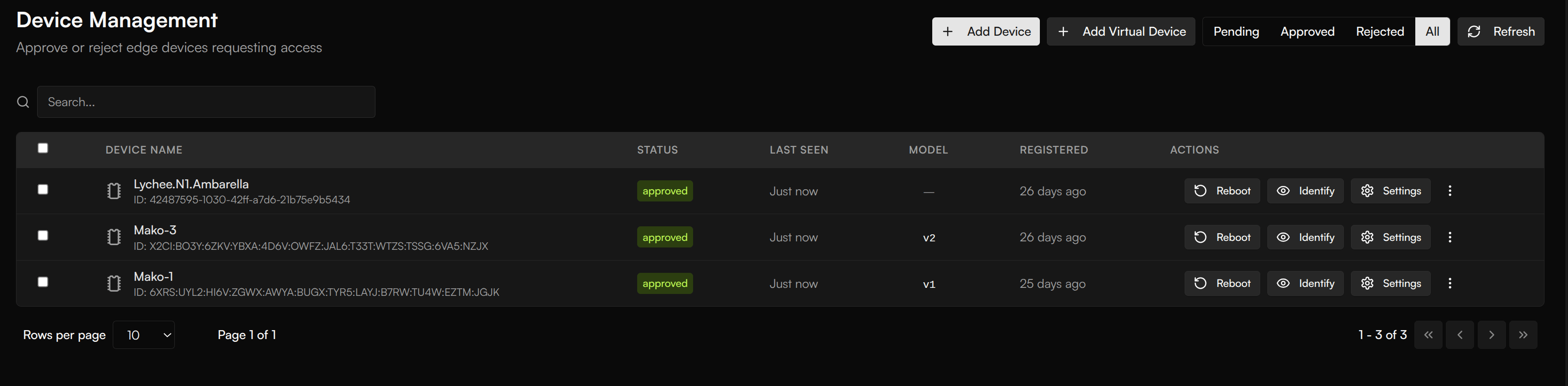
Go to **Devices** and click **Settings** on the device you want to configure. Each device row also has **Reboot** and **Identify** actions, so you can restart a box or make it identify itself without leaving the list.
 ## What you can set
The settings dialog is organized into tabs, so each concern has its own place:
* **General** — the device's basic settings.
* **Video** — the device's **video sources**, plus capture settings: resolution (width × height) and frame rate. Higher FPS gives smoother video but uses more bandwidth.
* **Advanced** — lower-level device settings.
* **Analytics** — what the device measures and reports.
* **Zones** — the regions of the frame the model should act on, so a camera only reports on the area you care about.
* **Network** — the device's network settings, edited straight from the dashboard.
## What you can set
The settings dialog is organized into tabs, so each concern has its own place:
* **General** — the device's basic settings.
* **Video** — the device's **video sources**, plus capture settings: resolution (width × height) and frame rate. Higher FPS gives smoother video but uses more bandwidth.
* **Advanced** — lower-level device settings.
* **Analytics** — what the device measures and reports.
* **Zones** — the regions of the frame the model should act on, so a camera only reports on the area you care about.
* **Network** — the device's network settings, edited straight from the dashboard.
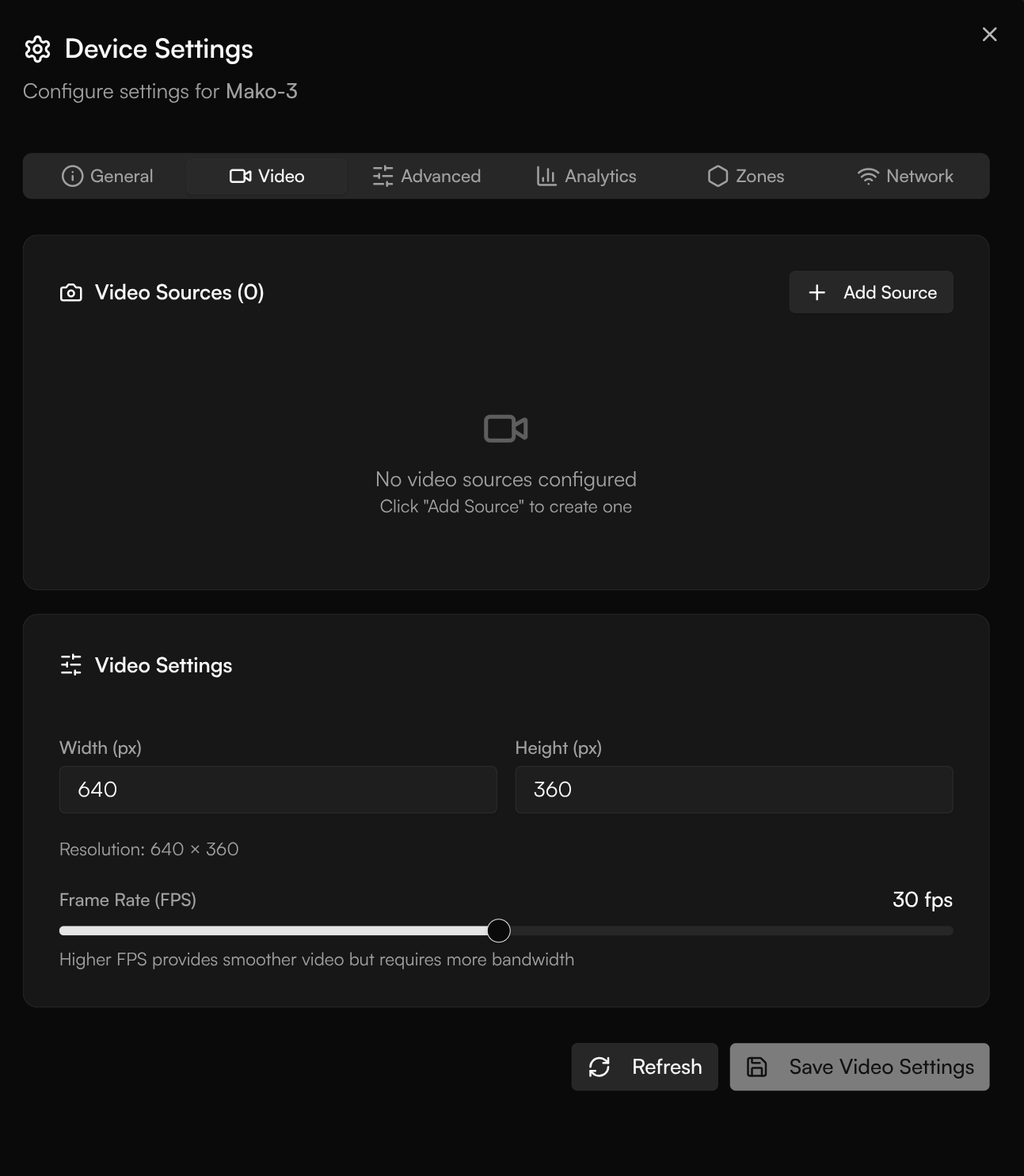 Each tab saves its own changes — for example, **Save Video Settings** applies the video configuration — and **Refresh** re-reads what the device currently has.
Because settings sync over the device's outbound connection like everything else, a device behind NAT or a firewall applies them with no inbound access — see [Edge agent](/hardware/edge-agent) for how the connection works.
## Next steps
Inspect and control the containers running on a device.
Manage devices individually and in groups.
Each tab saves its own changes — for example, **Save Video Settings** applies the video configuration — and **Refresh** re-reads what the device currently has.
Because settings sync over the device's outbound connection like everything else, a device behind NAT or a firewall applies them with no inbound access — see [Edge agent](/hardware/edge-agent) for how the connection works.
## Next steps
Inspect and control the containers running on a device.
Manage devices individually and in groups.