

1
Open Devices and add a device
In the sidebar, open Devices, then click Add Device to generate a setup command.
2
Run the command on the device
SSH into the edge machine and run the command AcuSight gives you.
3
The device comes online
It registers automatically and appears in the device list.
What you need on the device
- A Linux edge machine (
arm64,amd64, orarm) with Docker installed. - SSH access to the device, and its IP address.
- Outbound internet access — the device reaches AcuSight over HTTPS. It doesn’t need a public address, open ports, or firewall changes.
Step 1 — Generate a setup command
Open Devices from the sidebar (just below Home) and click Add Device. AcuSight opens Add Physical Device with a ready-to-run setup command: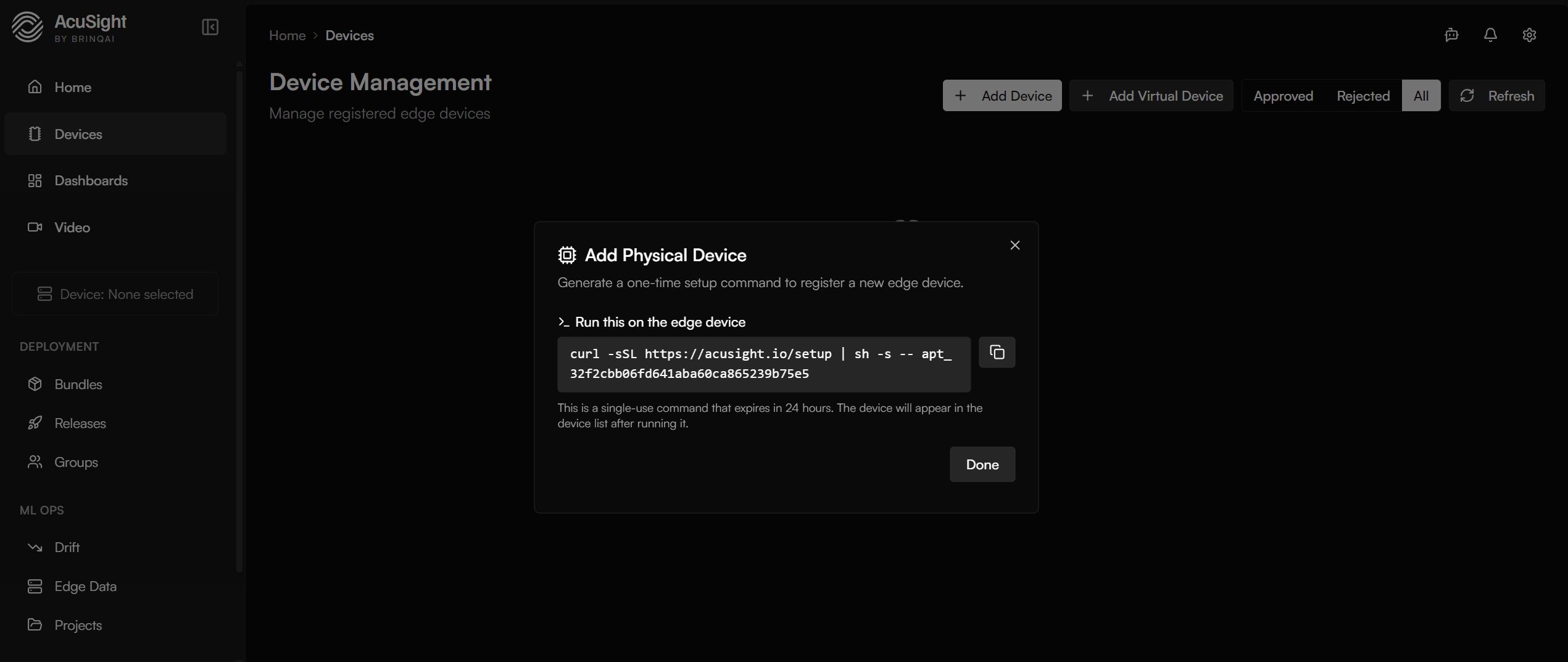
Add Device generates a one-time setup command to run on the edge device.
Step 2 — Run the command on the device
Run the command on the edge device itself. SSH in first, then paste it:sudo.
Step 3 — Confirm it’s online
Back on the Devices page, the new device appears in the list (use Refresh if needed). From there you can point it at a project and start collecting data.Add a virtual device
Next to Add Device is Add Virtual Device. A virtual device generates simulated device events instead of running on real hardware — handy for trying out projects, dashboards, and event flows before you have a physical camera connected. Create one the same way, straight from the dashboard, with nothing to install.Next steps
Deploy a model
Push a trained model to your new device or a whole group.
Edge data collection
Point your new device at a project and start streaming data in.
Fleet management
Monitor and manage your devices from the dashboard.
Supported devices
Requirements and the validated hardware platforms.