

Review your models
Open Models to see every version for the project. Select a model to view its metrics (mAP, precision, recall) and compare it against the others.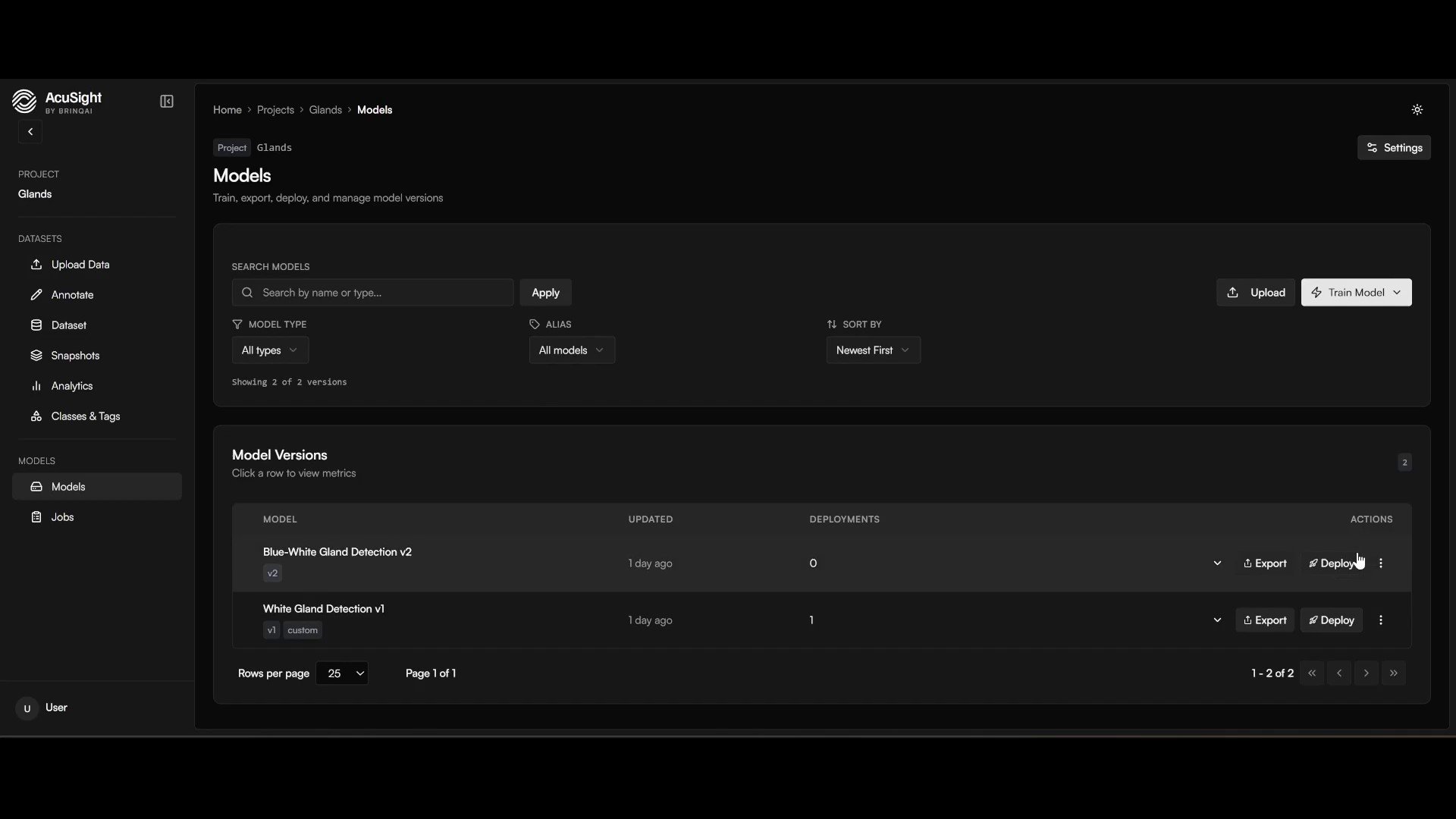
Every model version, with metrics and actions, in one place.
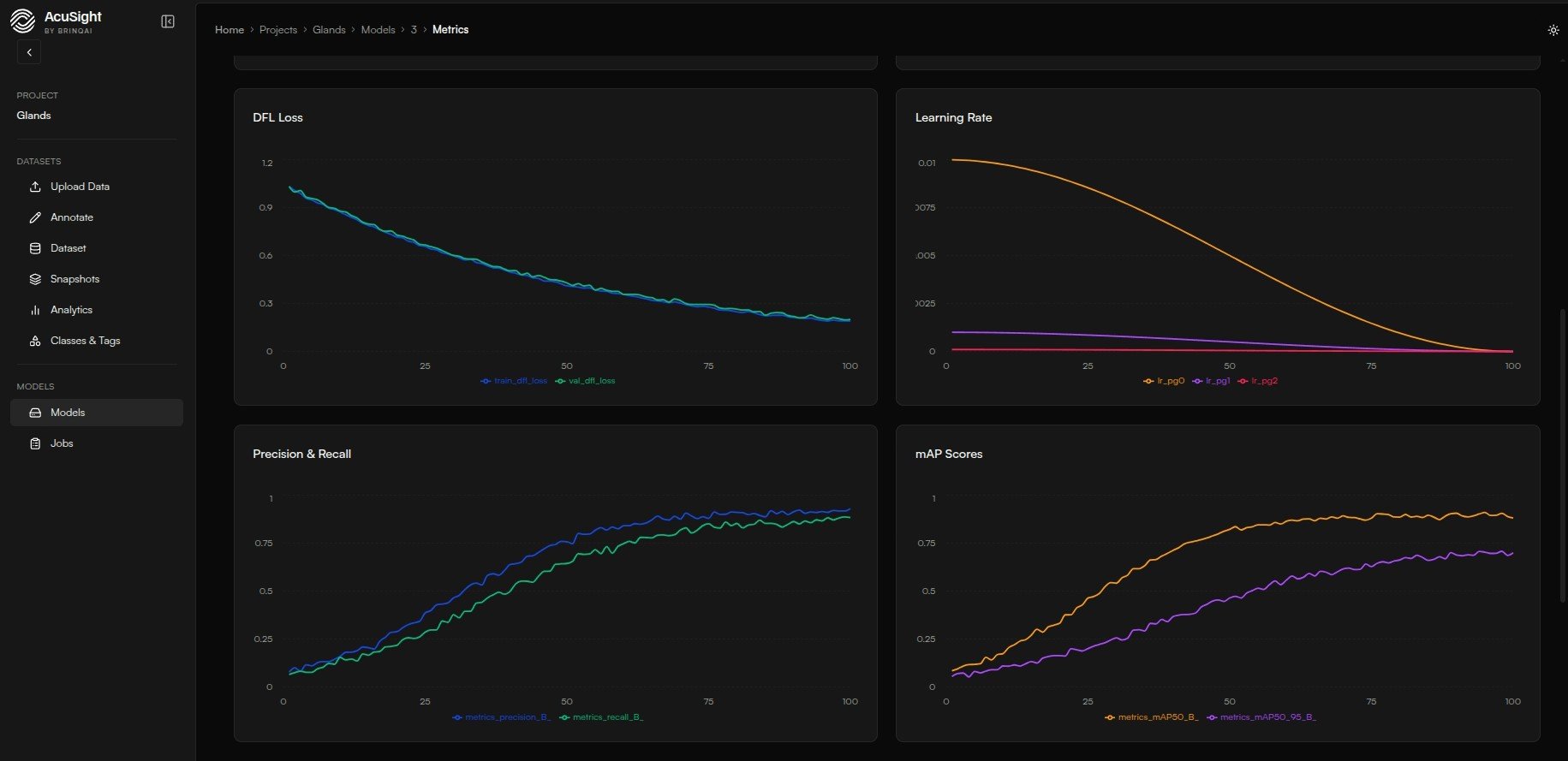
Per-model training curves — loss, precision/recall, and mAP across epochs.
Understand the designations
- Champion — the project’s active production model.
- Baseline — the previous champion, kept as a safety net to roll back to.
Promote a champion
- On the model you want to ship, select Promote to Champion.
- Confirm. The current champion becomes the baseline, and — if auto-deploy is on — the new champion rolls out to your devices automatically.
Promoting a champion sets your project’s production model and, when auto-deploy is on, rolls it out to the devices already running the previous champion. To push a specific model to a specific group instead, see Deploy a model to devices.
Next steps
Deploy a model to devices
Ship a model to the devices you choose and watch it run.
Model lifecycle
Champion, baseline, and rollback explained.