

How collection works
Once a device is provisioned, it captures images and streams them to AcuSight continuously — no manual upload, no copying files off an SD card. New images arrive on their own: they show up under the device’s Edge Data, and the device appears on Home with live status.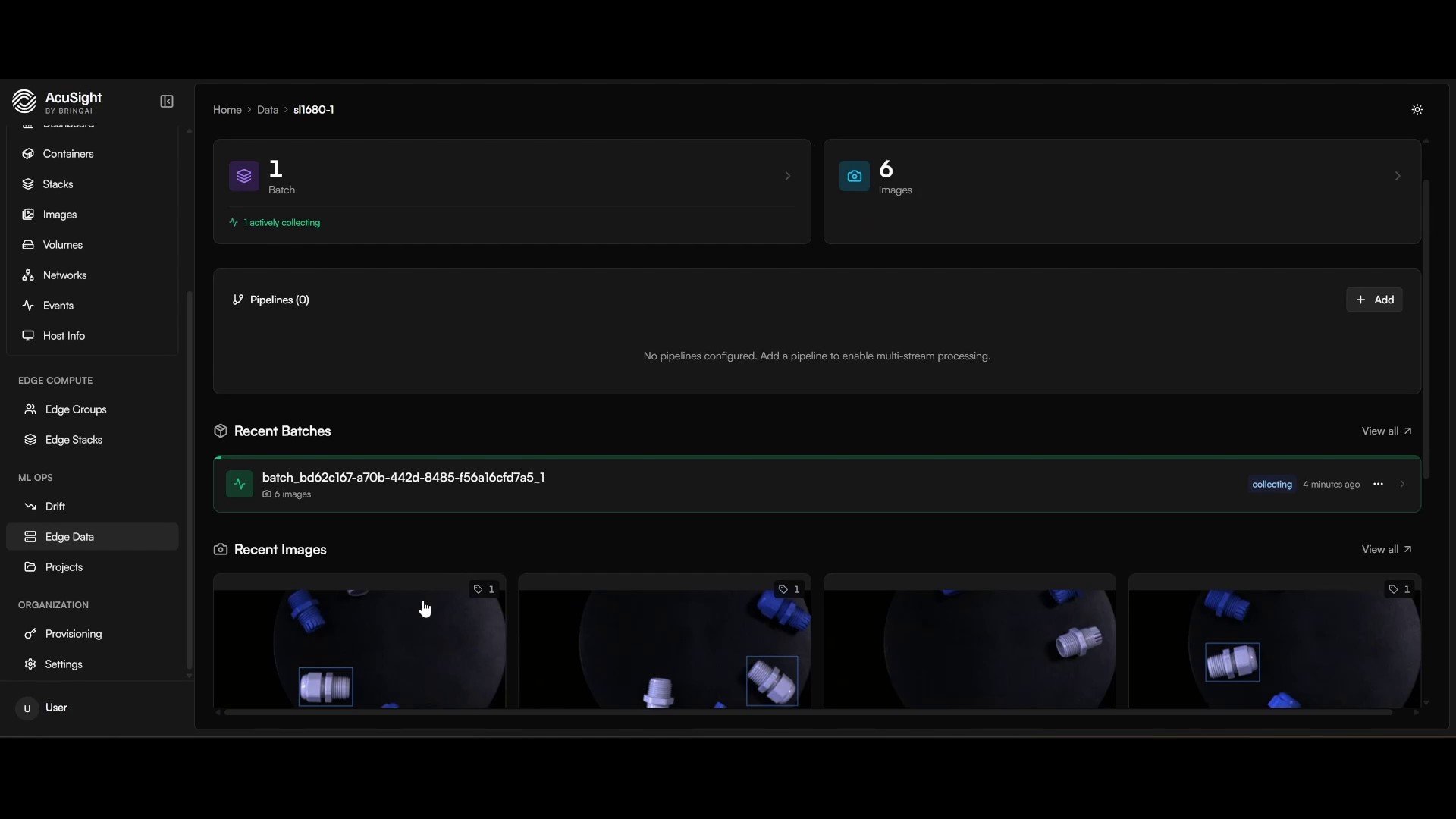
Provisioned devices stream images into AcuSight in real time.
Batches
Incoming images are grouped automatically into batches. A batch stays collecting as images arrive, then auto-completes once it’s full or the device goes quiet — no manual bookkeeping. Each completed batch is a tidy unit of data you can move into a project.Keeping your data diverse
A model only learns from variety. Hundreds of near-identical frames of the same still object teach it very little — and can quietly bias it toward one view. To prevent that, the AcuSight edge agent filters frames on the device, before they’re uploaded: it measures the difference between successive frames and automatically drops ones that are too similar — where little has changed since the last. It happens on its own, with nothing to configure, so each batch stays visually diverse and representative of what the device actually sees. The result is a smaller, richer dataset that trains a better model.Move it into a project
Collected data waits in the raw pool until you put it to work. When you’re ready:- Open the batch under Data.
- Select Move Batch to Project and choose your project.
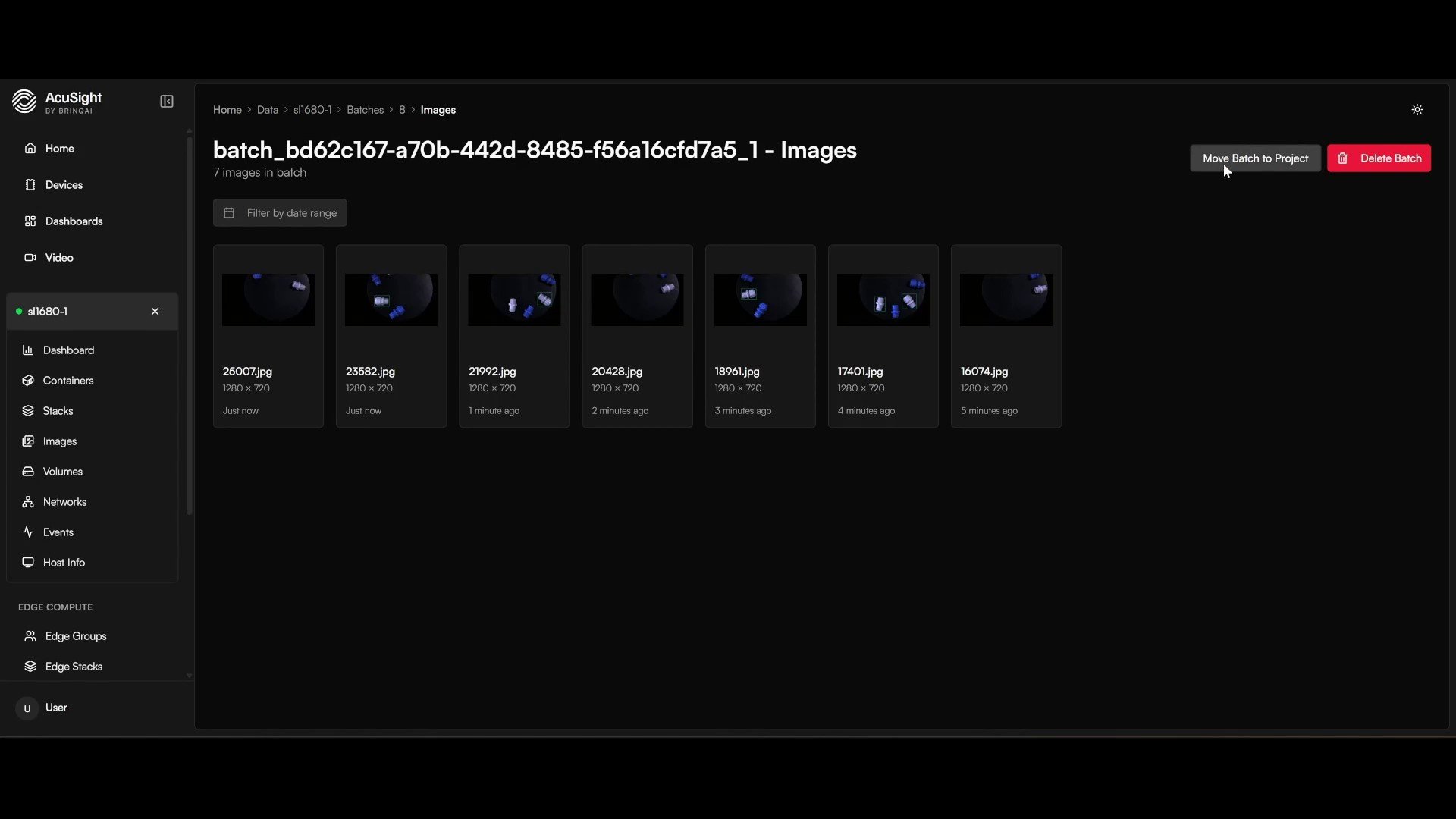
Move a collected batch into a project to start building your dataset.
Don’t have a project yet? Create one first — see Projects & batches.
Next steps
Collection is the first stop in the data workflow — from here, the rest of this section takes your images to a training-ready dataset:Projects & batches
Organize your data into projects and see how batches move through the workflow.
Annotation
Label the images in your project’s Annotate board.
Dataset versioning
Freeze labeled data into an immutable, reproducible dataset version.
Augmentation
Stretch your dataset further with automatic image transformations.