

Create a project
Open Projects and create a new one, giving it a name that describes what you’re detecting (for example, Cable glands). Everything that follows — annotation, dataset versions, training, models — lives inside this project.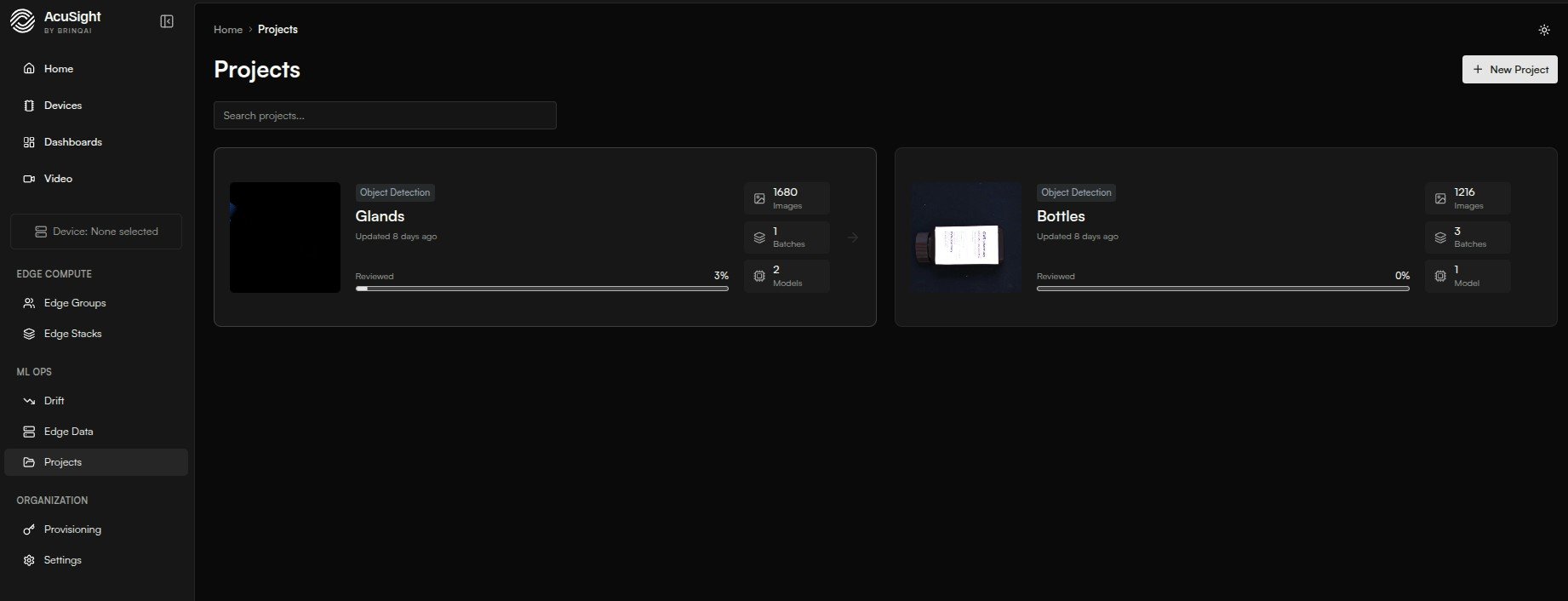
The Projects page — each card shows a project's images, batches, and models.
Bring your data in
Most images arrive automatically from your edge devices — see Edge data collection for how that works and how to move a batch into your project. You can also use Upload Data to add images from your computer.How a batch moves through your project
Once a batch is in your project, it appears on the Annotate board and moves through three stages:- Unassigned — in the project, not yet labeled
- Annotating — being labeled
- Dataset — labeled and added to the working dataset
Independently of that stage, every batch has a status —
collecting → complete — tracking upload progress. A batch auto-completes once it’s full or goes idle.Next steps
Annotate your images
Label the batch you just assigned with bounding boxes and classes.
Edge data collection
See how devices stream images in as batches.