

Before you start
You’ll need:- An AcuSight account.
- A trained model to deploy. If you don’t have one, walk the Build a defect detector tutorial first.
- One or more Linux edge machines (
arm64,amd64, orarm) with Docker and SSH access — or virtual devices if you want to try the flow without hardware.
Step 1 — Connect your first device
From Devices, click Add Device to generate a one-time setup command, then run it on the edge machine over SSH: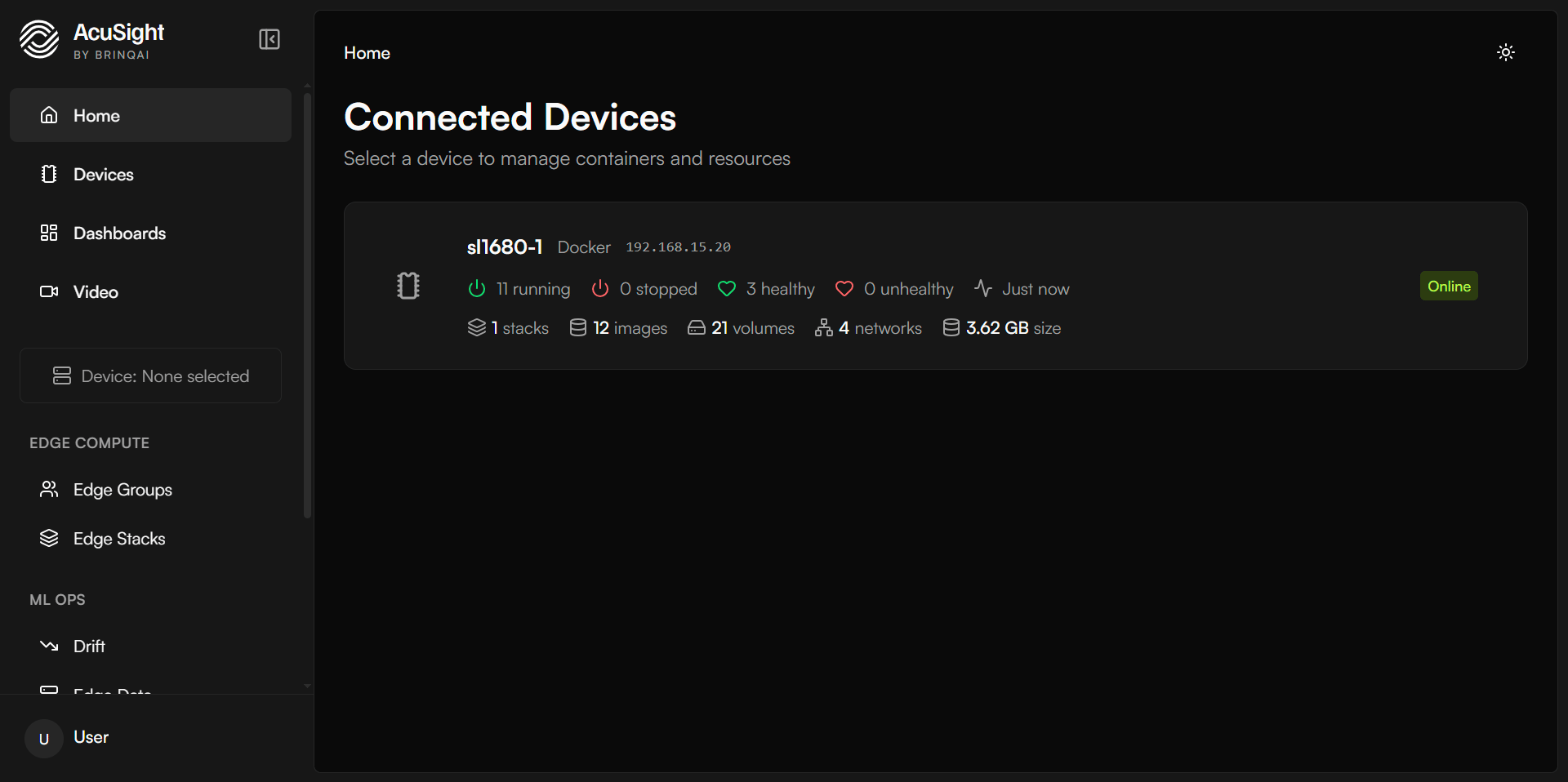
Each device registers itself and appears on the Devices page with live status.
Step 2 — Add the rest of the fleet
Repeat Step 1 for each device. Setup commands are single-use and expire after 24 hours, so generate a fresh one per machine. Devices come online independently and appear on Devices as they register — there’s nothing to refresh or poll.Step 3 — Organize into an edge group
Managing devices one by one doesn’t scale. Scroll down the left menu to find Edge Groups. Click Add Edge Group to define a named set — for example, Line 3 cameras — and treat it as a single target.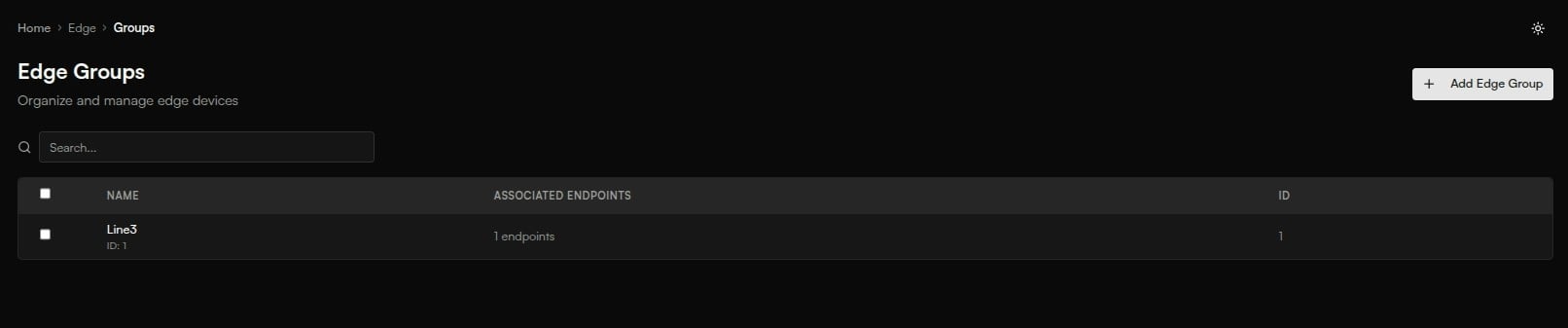
Group devices by line, site, or model so you can act on them together.
Step 4 — Deploy a model across the group
Open Models, select your model, and choose Deploy, then pick the group — every device in it picks up the model on its next check-in. Rolling an update later is the same action: deploy the new model to the group and the whole fleet moves together. More in Deploy a model.Step 5 — Monitor the fleet
With devices running, keep an eye on them from Monitoring — fleet and model health on live dashboards, so you catch an offline device or a drop in detections early.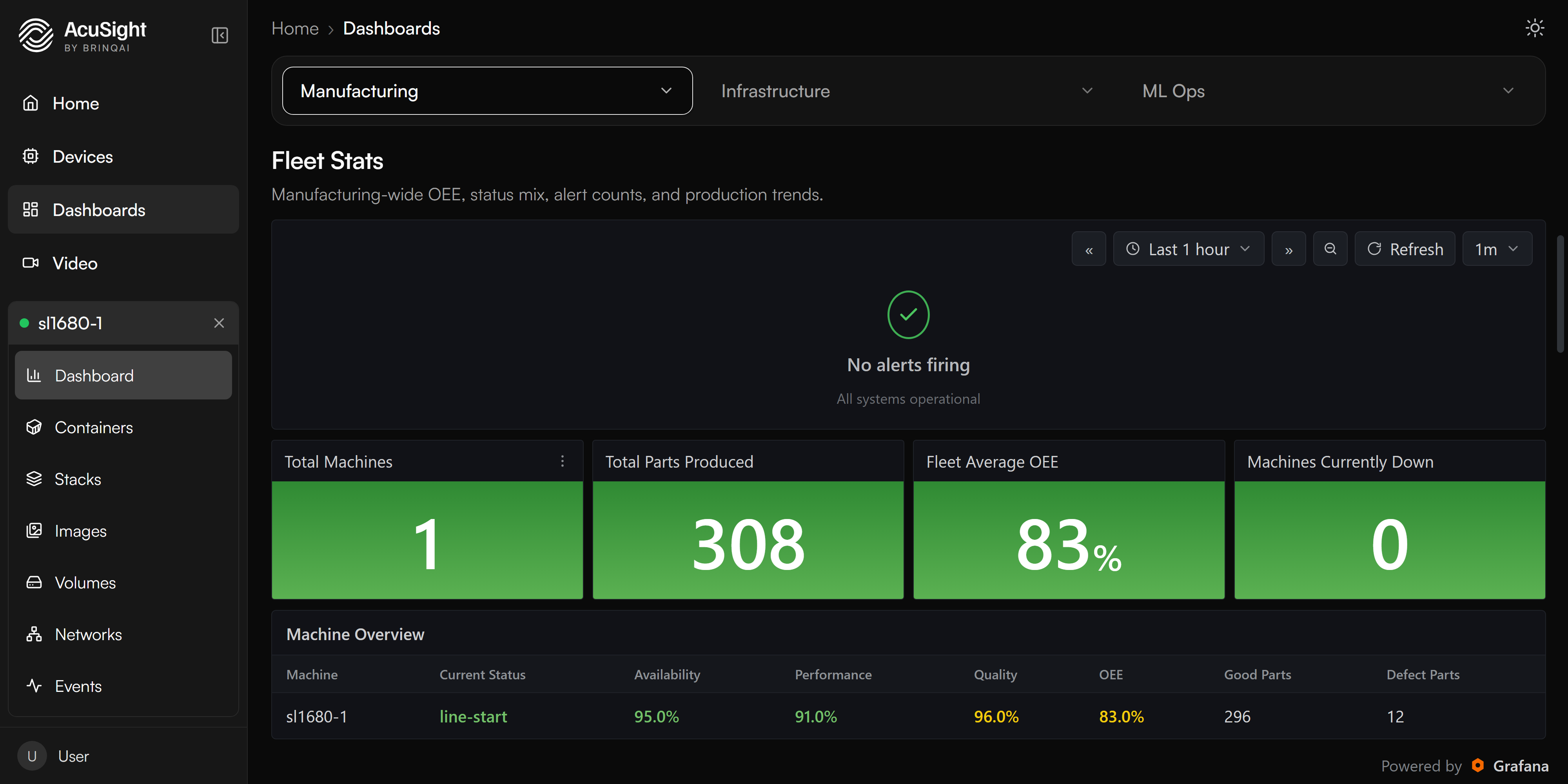
Fleet and model health on live dashboards.
If a device shows as waiting or offline, confirm it has outbound internet access and re-run its setup command. Devices reconnect automatically once they can reach AcuSight.
Next steps
Fleet management
The full set of per-device and group controls.
Supported devices
Hardware that runs the AcuSight edge agent.